
Recruiter Guide
Learn how to post jobs, find top talent, and manage your recruitment pipeline on MaestroRecruit
1. Getting Started
Register Your Company
Click Register and select Recruiter / Company. Provide your company name, registration details, and a company description. Your account will be submitted for approval by our admin team. Once approved, you will receive an email notification and can begin using the platform.
Set Up Your Company Profile
After approval, complete your company profile with your logo, description, industry, and contact information. A well-presented company profile builds trust with potential candidates.
Your Dashboard
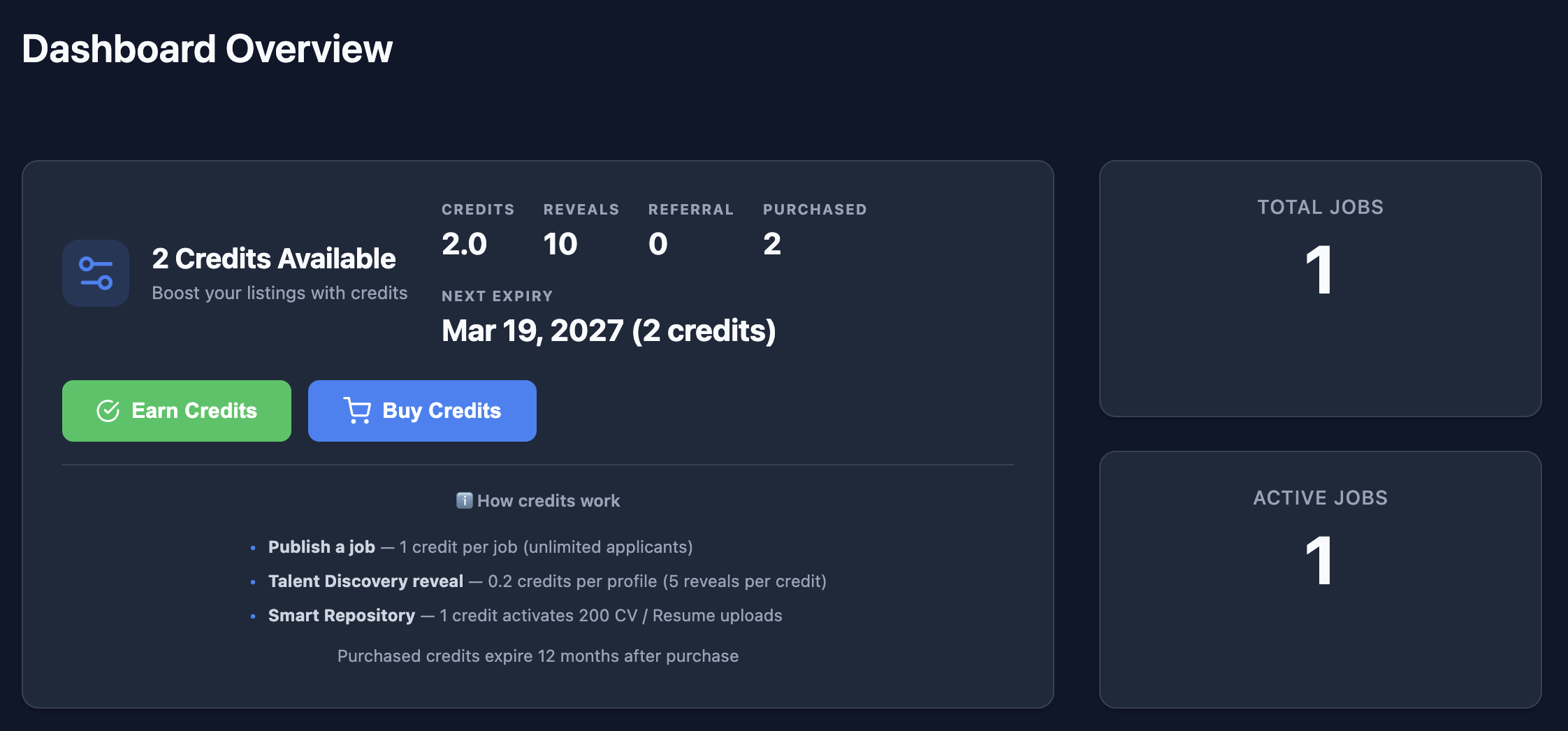
Your Dashboard Overview shows your credit balance, active jobs, and key metrics at a glance. It also explains how credits work — for publishing jobs, revealing candidate profiles, and using the Smart Repository.
Available Features
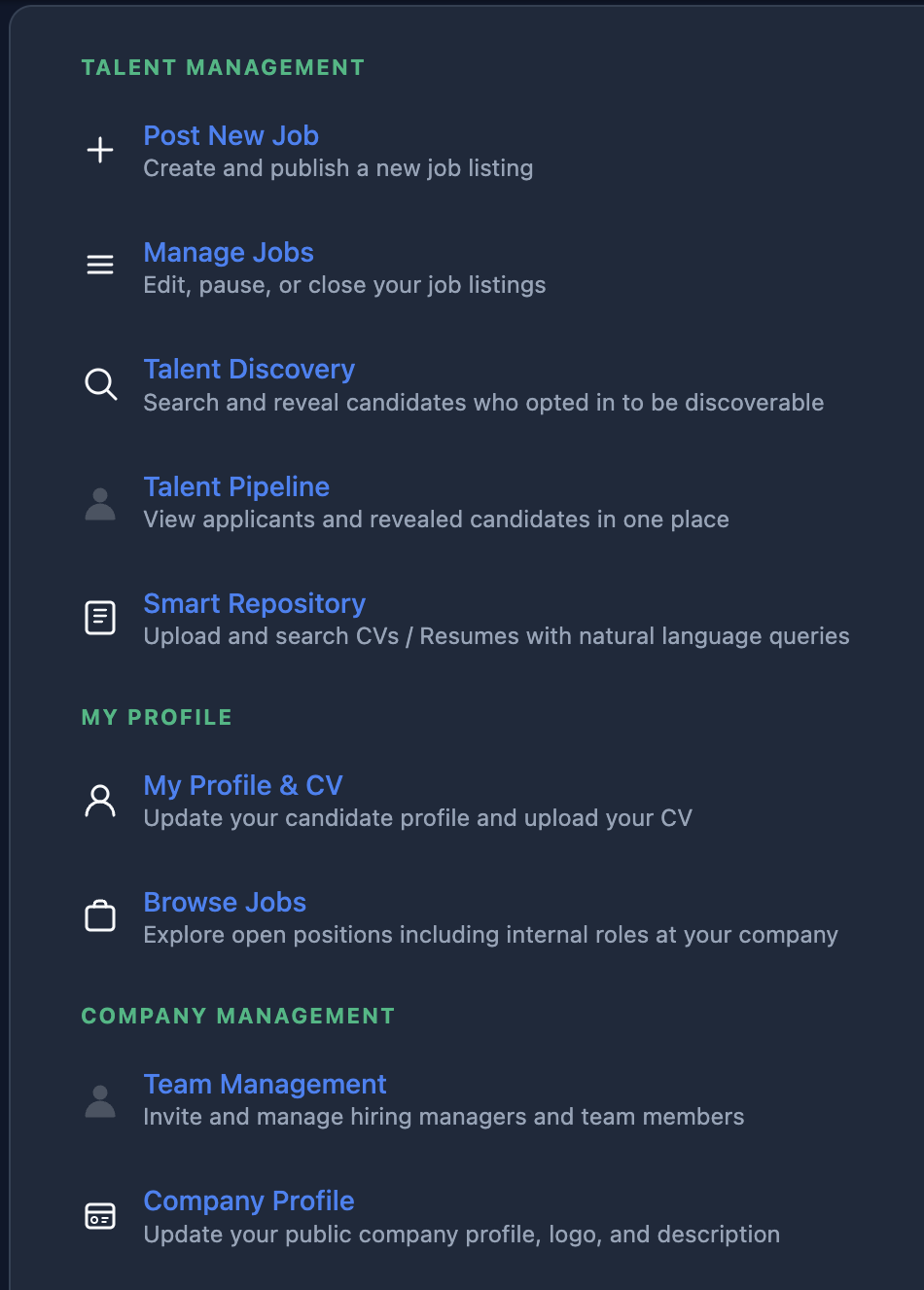
From your dashboard, you have access to all recruitment tools: post and manage jobs, discover talent, search your CV repository, manage your team, and update your company profile.
2. Posting Jobs
Create a Job Posting
From your Dashboard, click Post a Job. Fill in the essential details:
- Job title and department
- Location and work type (Remote, Hybrid, Onsite)
- Salary range and currency
- Job description and requirements
- Application deadline
Public vs Internal Jobs
When creating a job, choose the visibility:
- Public — Visible to all job seekers and indexed by search engines
- Internal — Only visible to your company's employees and team members. Internal jobs are marked with a purple “Internal” badge
Employees who registered with your company's email domain are automatically granted access to internal postings.
Add Screening Questions
Enhance your listings with custom screening questions. Choose from text inputs, dropdowns, multi-select options, and yes/no questions. Mark questions as required to ensure candidates provide the information you need to make hiring decisions.
Manage Listings
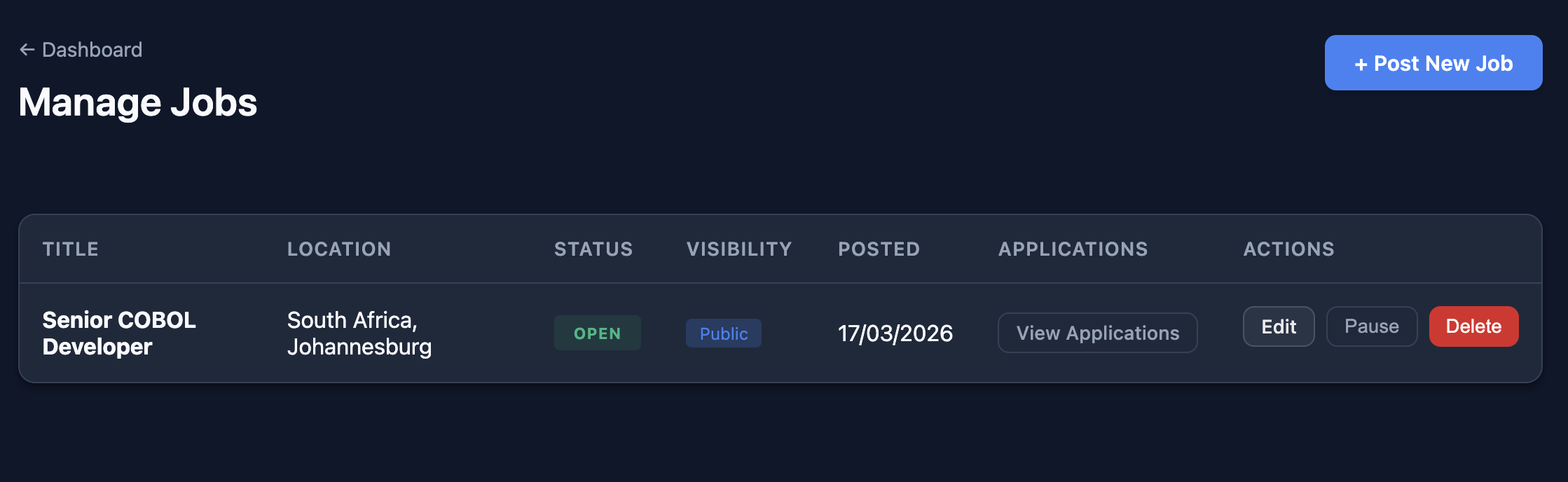
Published jobs appear on the Jobs page immediately. You can edit, pause, or close listings at any time from your Dashboard. Closed positions stop accepting new applications but existing ones remain accessible.
Job Posting Credits
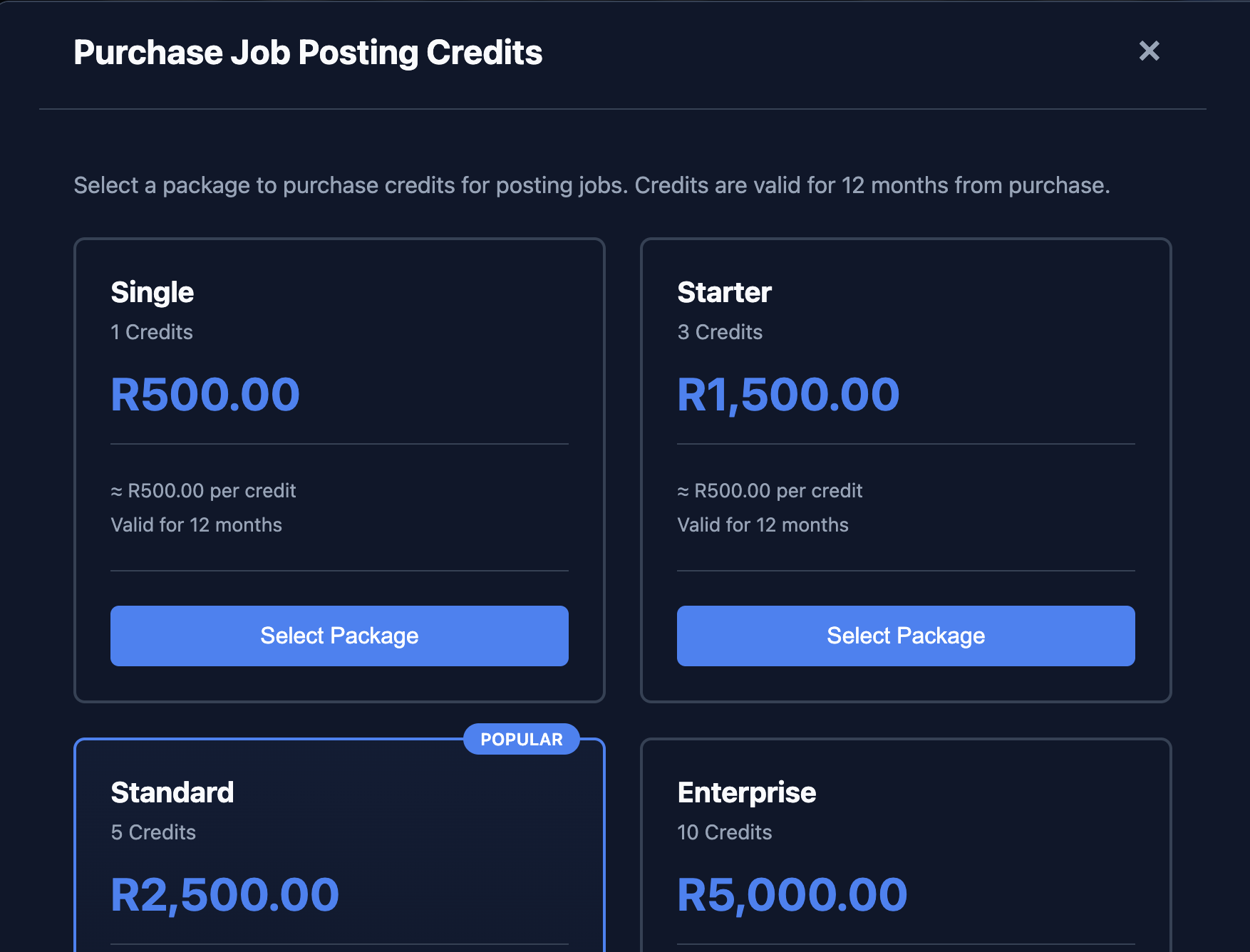
Publishing a job requires 1 credit. You can purchase credit packages from your Dashboard. Credits are valid for 12 months from the date of purchase. You can also earn free credits through the referral programme.
Earn Free Credits
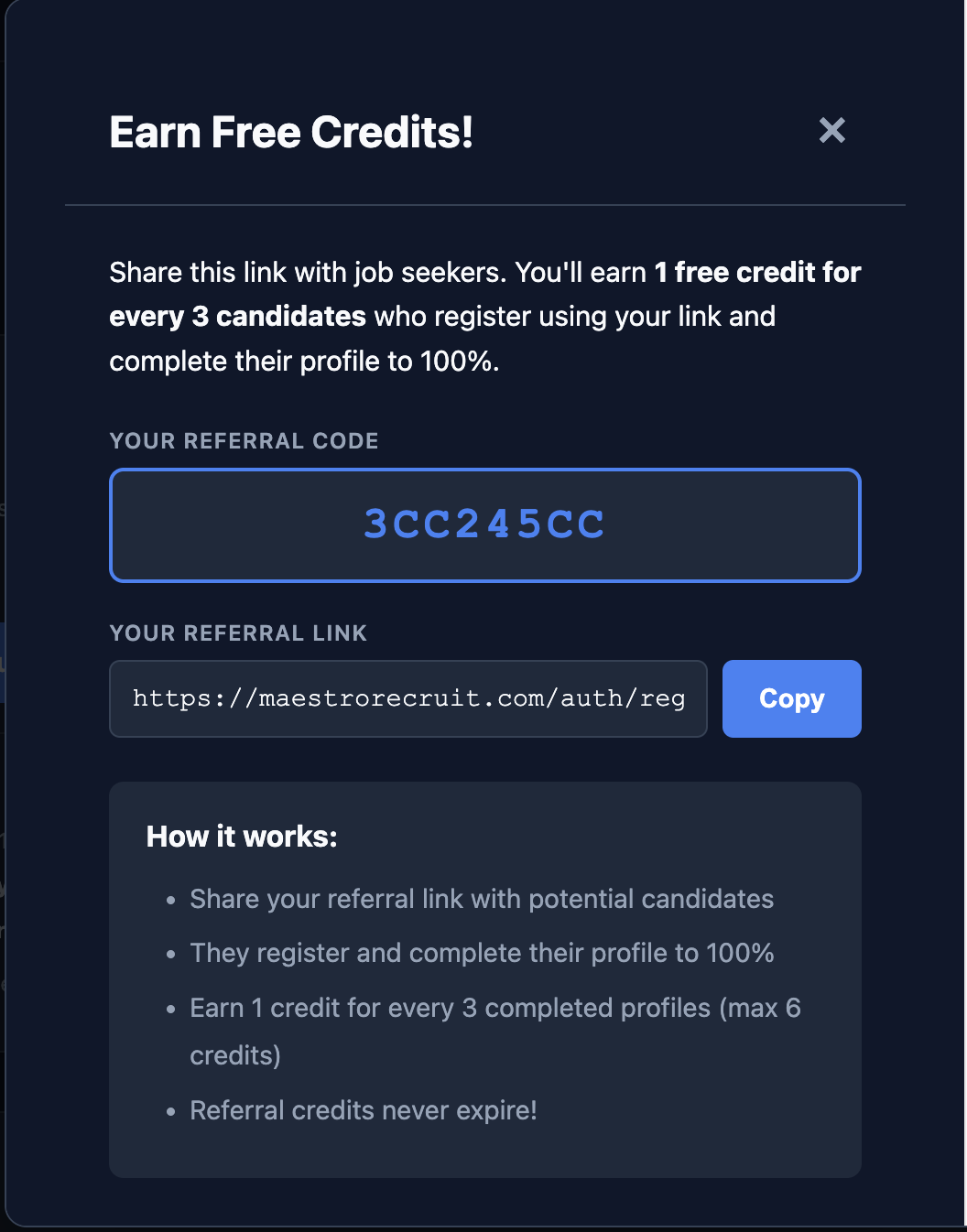
Share your unique referral link with job seekers. For every 3 candidates who register using your link and complete their profile to 100%, you earn 1 free credit (up to 6 maximum). Referral credits never expire.
3. Finding Candidates
Talent Discovery
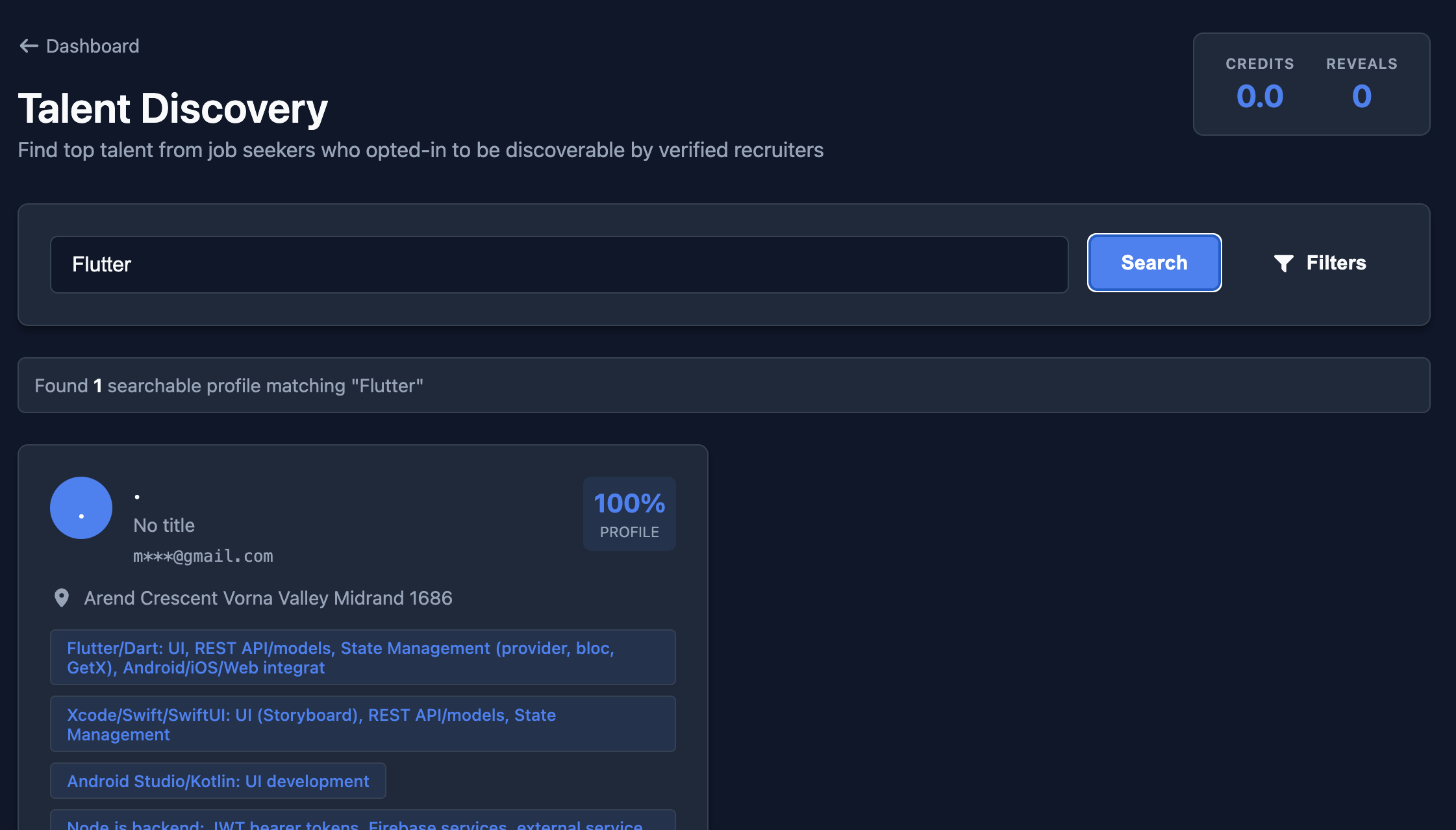
Use the Talent Discovery feature to browse the candidate database. Search by keywords, skills, location, and more. You can also filter by minimum years of skill experience to find candidates with the right level of expertise.
Understanding Anonymised Profiles
Search results show anonymised profiles to protect candidate privacy. You will see a skills summary, experience level, location region, and a match score. To view a candidate's full details, you can reveal their profile.
Revealing Profiles
When you find a promising candidate, use the Reveal action to unlock their full profile including name, contact details, complete work history, and education. Each reveal costs 0.2 credits. Once revealed, the profile is saved permanently and won't cost credits again.
Company Email Protection
Candidates who registered with a company email domain are automatically protected. They will only appear in searches by their own company's recruiters, not external companies. This protects company reputation and prevents external poaching of employees through the platform.
4. Managing Applications
Review Applicants
Each job posting has an applicant list accessible from your Dashboard. Review candidate profiles, their answers to your screening questions, and their uploaded CVs / Resumes. Use the status system to track each applicant through your hiring pipeline.
Update Application Status
Move candidates through the stages as you progress:
- Under Review — You are evaluating the candidate
- Interview — The candidate has been selected for an interview
- Offered — You have extended an offer to the candidate
- Unsuccessful — The candidate was not selected for this role
5. Smart Repository & Talent Pipeline
Smart Repository
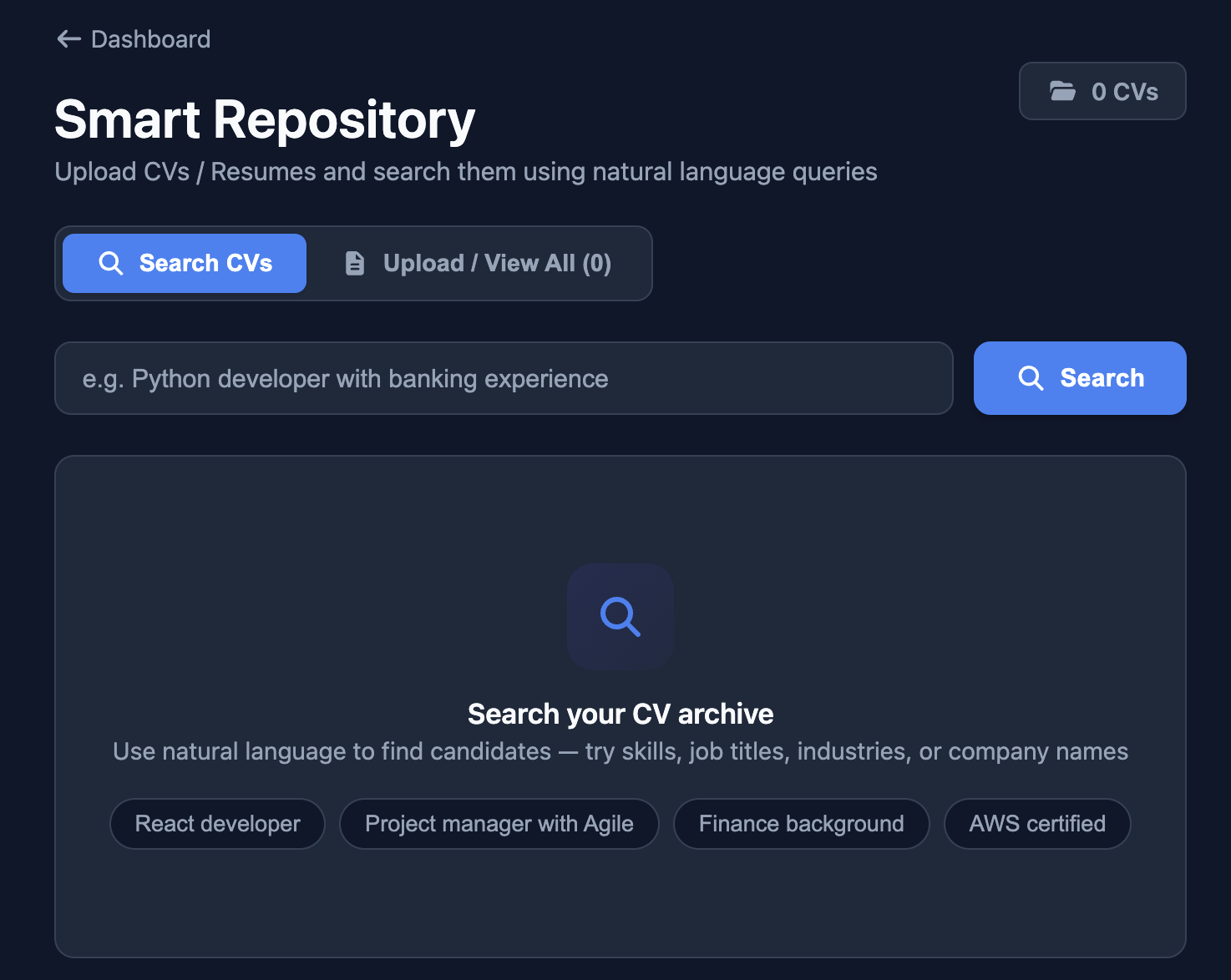
The Smart Repository lets you upload CVs / Resumes and search them using natural language queries. Try searching by skills, job titles, industries, or company names to find the right candidates from your own CV archive.
Your Candidate Pipeline
The Talent Pipeline consolidates all candidates you have interacted with. It includes applicants to your job postings and profiles you have revealed through Talent Discovery. Use filters and search to quickly find candidates across all your positions.
6. Team Management
Invite Team Members
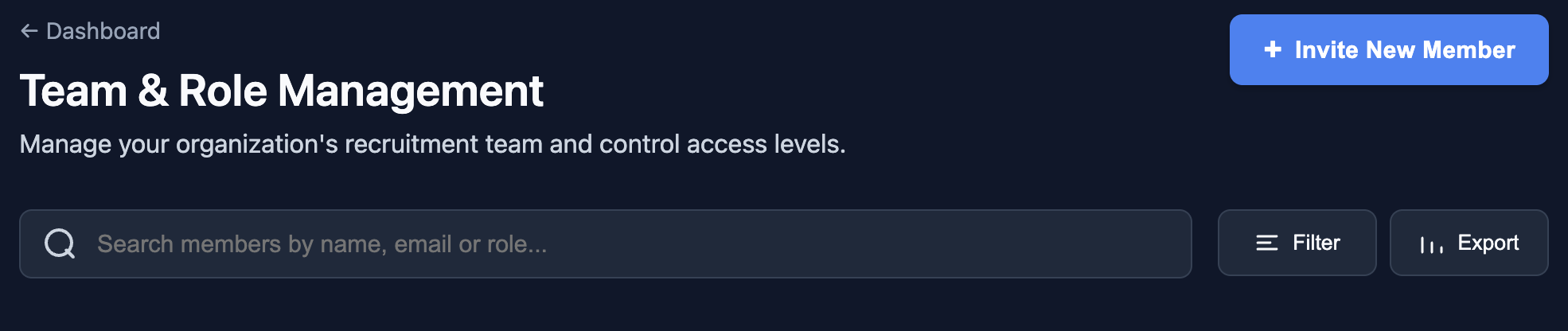
Company admins can invite new members from the Team & Role Management page. Send an invitation by email — the recipient will receive a secure link to accept and join your company. Invitations expire after 7 days and can be resent or cancelled.
Team Roles
There are three roles within a company:
- Admin — Full access to team management, billing, company settings, and all recruitment tools
- Hiring Manager — Can post jobs, manage candidates, and view analytics
- Employee — Can view and apply for internal company jobs only. No access to recruitment tools
Employees are automatically added when job seekers register with your company's email domain. Admins can promote employees to Hiring Manager or Admin roles at any time.
Promote, Demote & Suspend
Click Edit Permissions on any team member to change their role or status. You can promote an employee to a recruitment role, demote a recruiter back to employee (removing them from the recruitment team), or suspend a member to temporarily block all company access.
Your Own Profile
Recruiters and hiring managers also have access to My Profile & CV from the dashboard. You can maintain your own candidate profile and upload your CV, which is useful if you want to apply for internal positions at your own company.
7. Tips for Effective Hiring
- Write clear, detailed job descriptions to attract the right candidates
- Use screening questions to pre-qualify applicants and save time
- Respond to applications promptly — top candidates are often hired quickly
- Use the minimum skill experience filter to find precisely qualified candidates
- Keep your company profile updated with an engaging description and logo
- Check the Career Advice section for recruitment best practices