
Job Seeker Guide
Everything you need to know about using MaestroRecruit to find your next opportunity
1. Getting Started
Create Your Account
Visit the registration page and select Job Seeker as your account type. Enter your full name, email address, and create a secure password. You will receive a verification email — click the link to activate your account.
Complete the Onboarding
After your first login, you will be guided through a quick onboarding process. This helps us understand your preferences such as desired work type, salary expectations, and availability. You can always update these later from your Profile.
2. Building Your Profile
Upload Your CV / Resume
Navigate to your Profile page. Use the CV / Resume upload area at the top to upload your CV / Resume in PDF, DOC, or DOCX format. Our AI will automatically extract your work experience, education, skills, and contact details to populate your profile.
Add Your Top Skills
In the Skills tab, add up to 5 top technical skills and 5 top soft skills. For each skill, enter the year you started using it. This allows recruiters to filter by years of experience, making your profile more discoverable.
Review and Edit
Go through each tab — Contact, Experience, Education, Skills, and Preferences — to review the extracted information and fill in anything that was missed. A higher profile completion percentage means better visibility in recruiter searches.
3. Profile Visibility & Job Alerts
Make Your Profile Discoverable
In your Profile settings, you can toggle Make my profile discoverable by all recruitment companies. When enabled, recruiters can find you through Talent Discovery searches. Your sensitive details remain encrypted until a recruiter reveals your profile.
Company email protection: If you registered with a company email (e.g. you@acme.com), your profile is automatically protected from external recruiters. Only your own company's recruiters can discover your profile, even if discoverability is turned on.
Set Up Job Alerts
Enable Receive job alert emails in your profile settings to get notified about new positions that match your interests. You can specify job titles you're interested in to receive more relevant alerts.
Internal Company Jobs
If you registered with a company email domain that matches a registered company on MaestroRecruit, you automatically get access to that company's internal job postings. Internal jobs are marked with a purple “Internal” badge and are only visible to company members. You can filter for internal jobs using the Job Type filter on the jobs page.
4. Searching and Applying for Jobs
Browse Available Positions
Visit the Jobs page to see all open positions. You can also use the search bar on the home page to quickly find jobs by title, company, or location. Use filters to narrow down by location, work type, and job type (public or internal). Click on any job card to see the full description and requirements.
Save Jobs for Later
Not ready to apply yet? Click the bookmark icon on any job listing to save it. Access your saved jobs anytime from the Applications page under the Saved Jobs tab.
Submit an Application
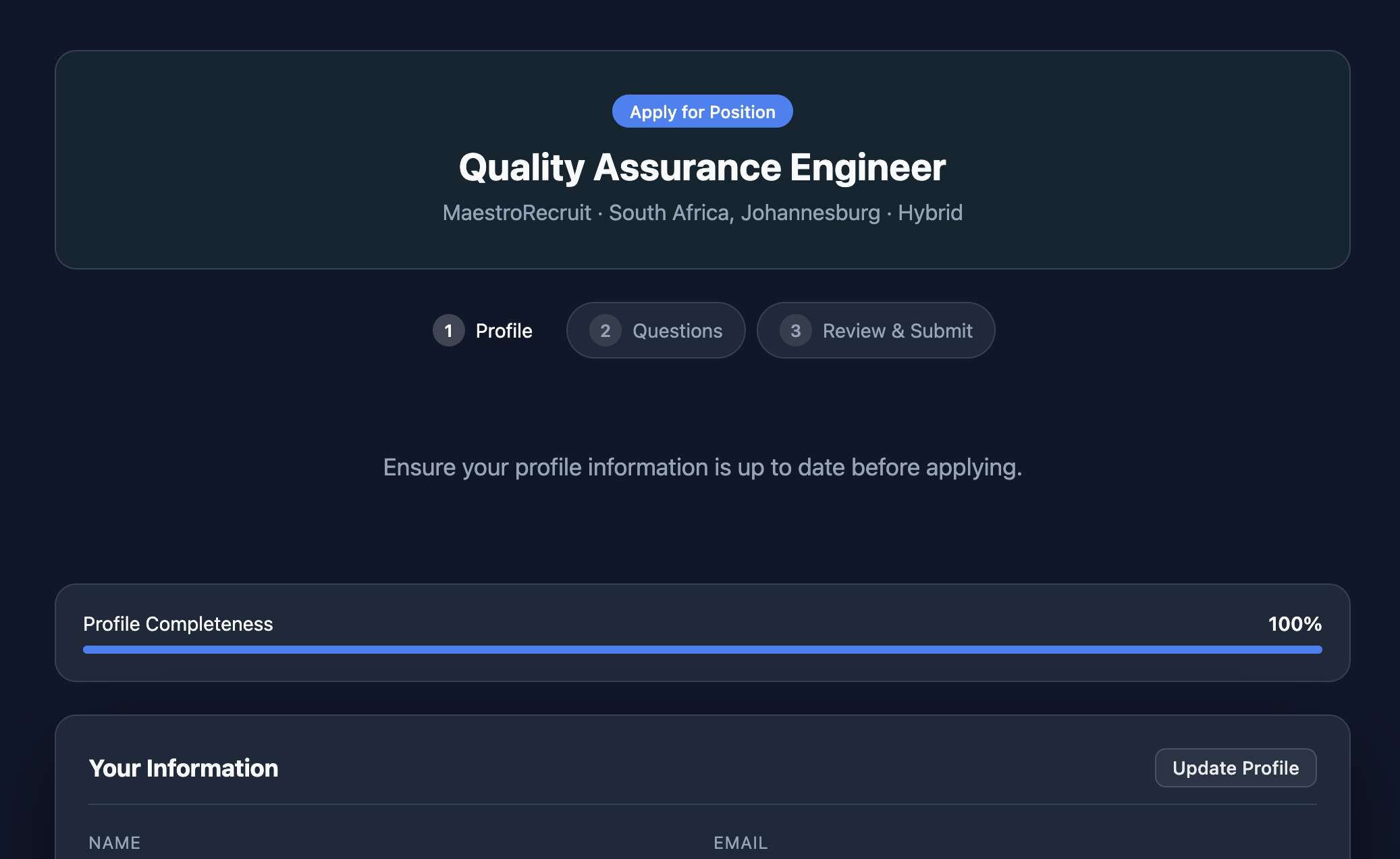
Click Apply on a job posting. You will need at least 50% profile completion. The application process has three steps: reviewing your profile information, answering screening questions, and a final review before submission. If your profile needs updating, use the “Update Profile” link to go to your profile page.
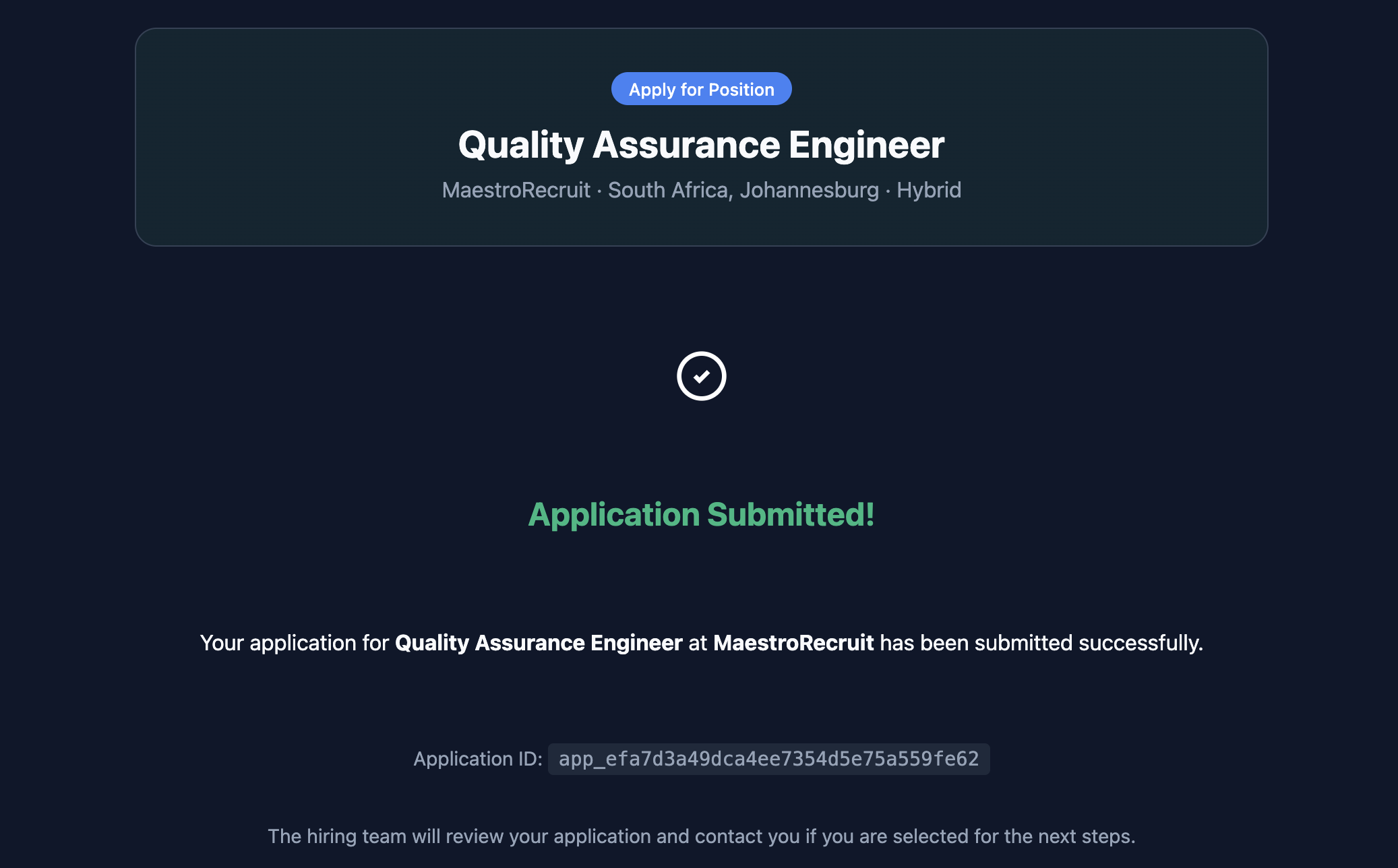
After submitting, you will see a confirmation screen. Your application is now with the hiring team.
5. Tracking Your Applications
Application Statuses
Each application goes through these stages:
- Submitted — Your application has been received
- Under Review — The hiring team is reviewing your application
- Interview — You have been selected for an interview
- Offered — You have received a job offer
- Unsuccessful — The position has been filled or you were not selected
View Your Dashboard
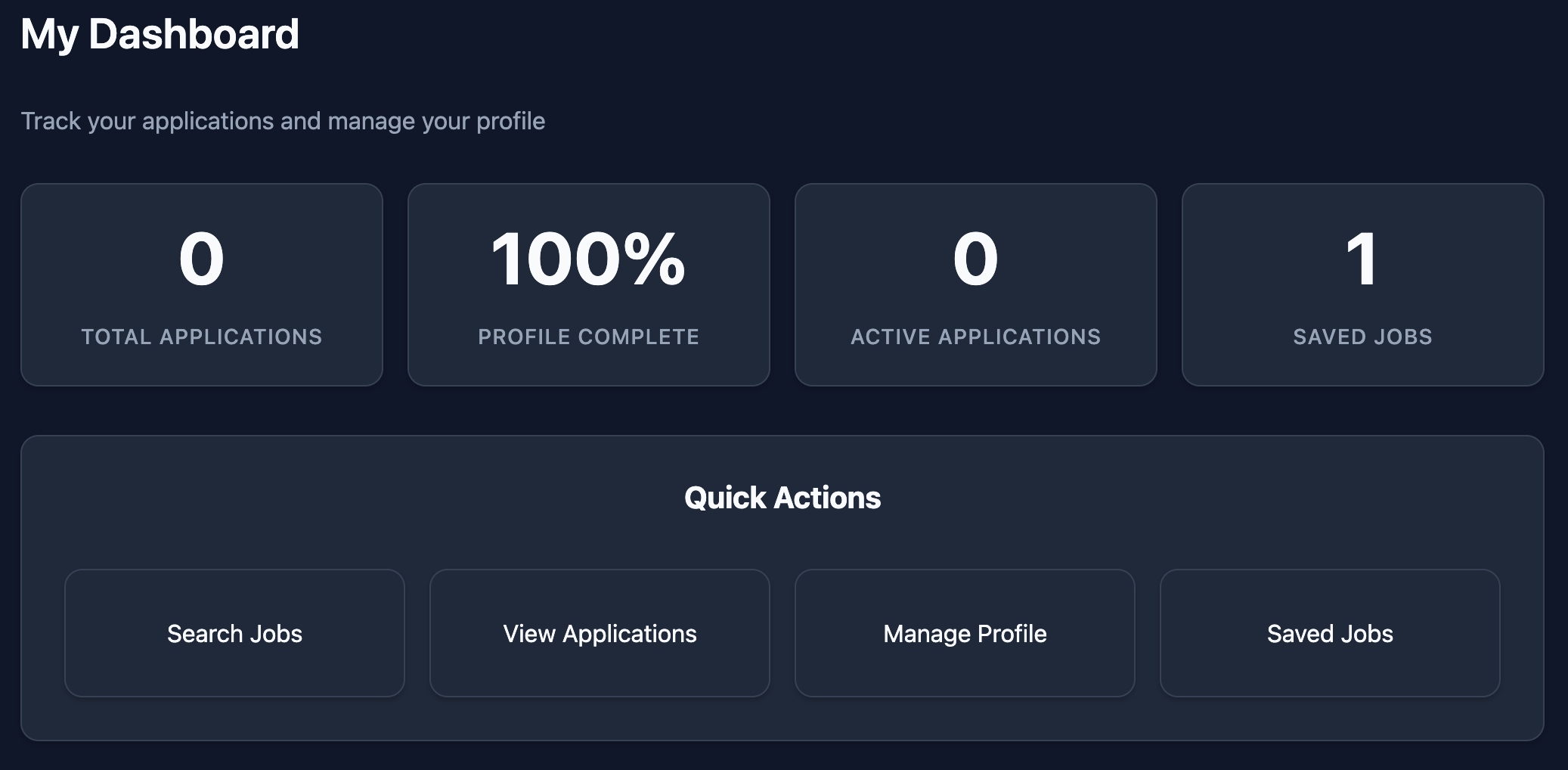
Your Dashboard provides an overview of your application statistics, recent activity, and quick actions. Check it regularly to stay on top of your job search progress.
Track Application Progress
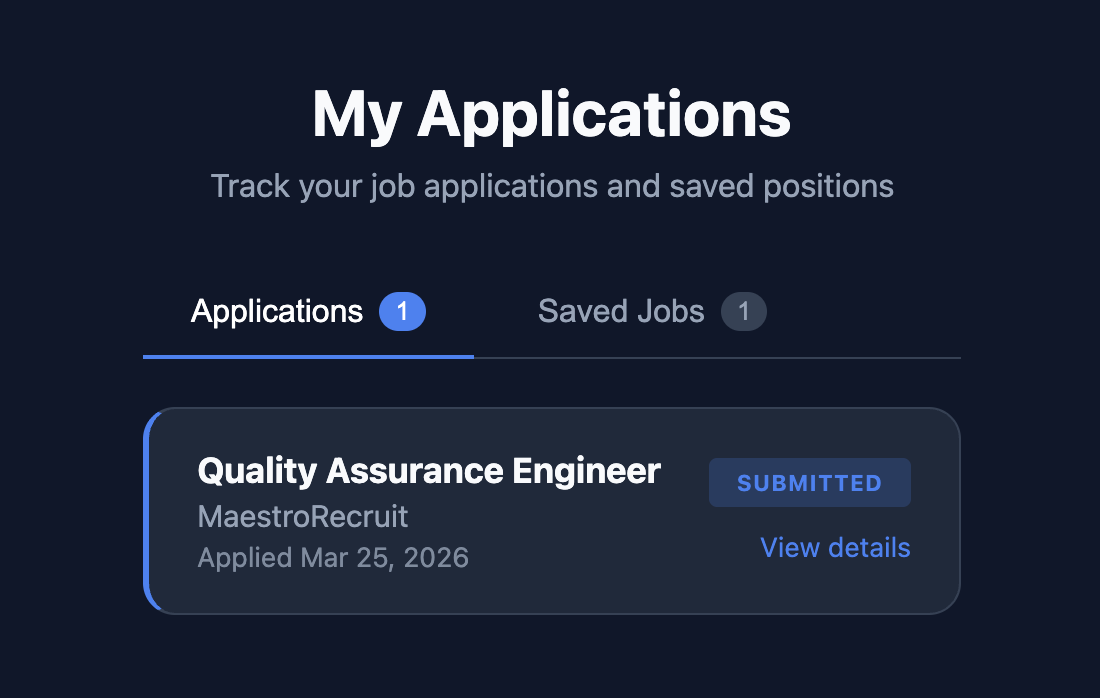
The My Applications page shows all your submitted applications with their current status. Click on any application to review details or check for updates from the hiring team.
6. Tips for Success
- Keep your profile updated — recruiters actively search for candidates
- Add accurate years for your top skills — this is a key filter recruiters use
- Write a compelling professional summary that highlights your strengths
- Upload an up-to-date resume in a clean, professional format
- Tailor your answers to screening questions for each role you apply to
- Check the Career Advice section for interview tips and career resources